> ## Documentation Index
> Fetch the complete documentation index at: https://docs.callrounded.com/llms.txt
> Use this file to discover all available pages before exploring further.
# Integrate a Knowledge Base into your Voice Agent
The Knowledge Base allows your voice agent to access a large repository of knowledge, enabling it to answer client questions effectively without including all the information in the prompt. For example, it can be particularly useful for integrating Q\&As or detailed documents.
***
### 1. Access the Knowledge Bases Section
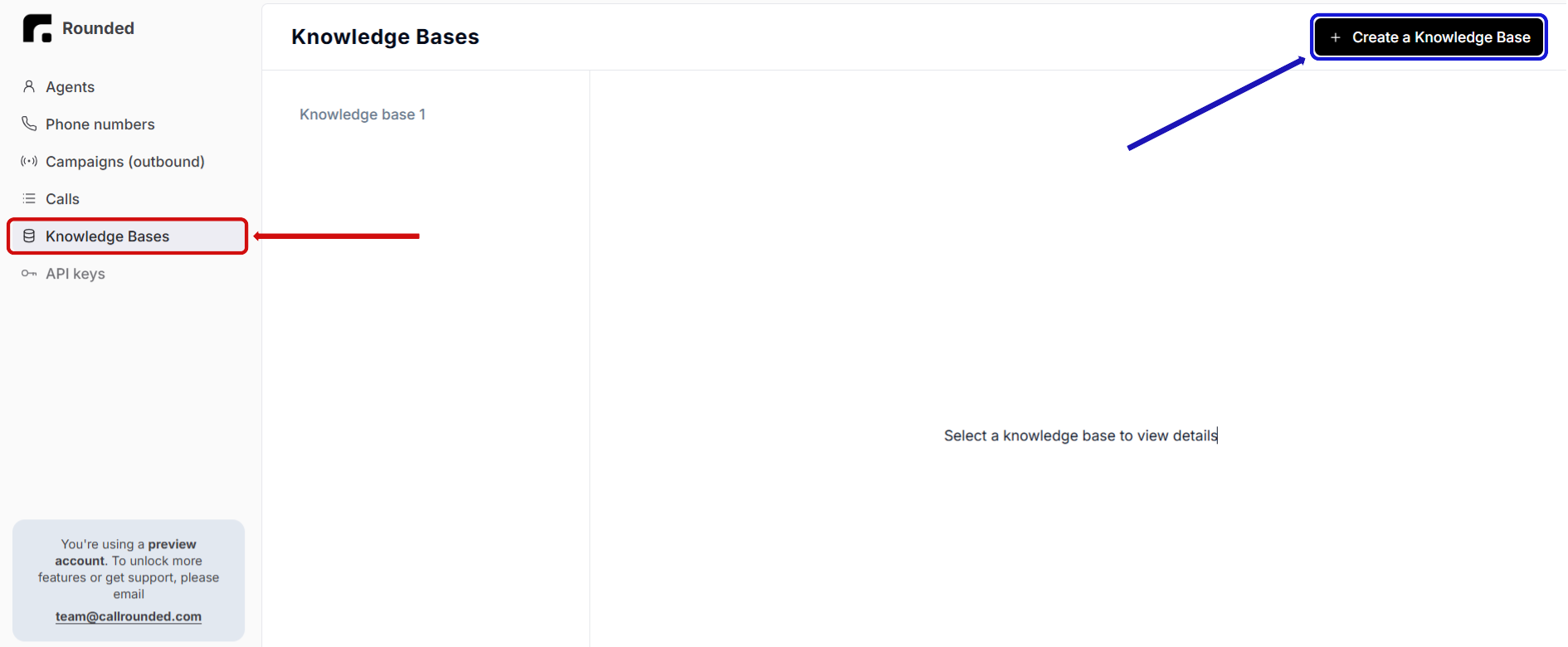
Go to the **"Knowledge Bases"** section, highlighted in red on the screenshot below.
***
### 2. Create a Knowledge Base
Click on the black button labeled **"Create a knowledge base"** (highlighted in blue on the screenshot).
 ***
### 3. Add Documents to the Knowledge Base
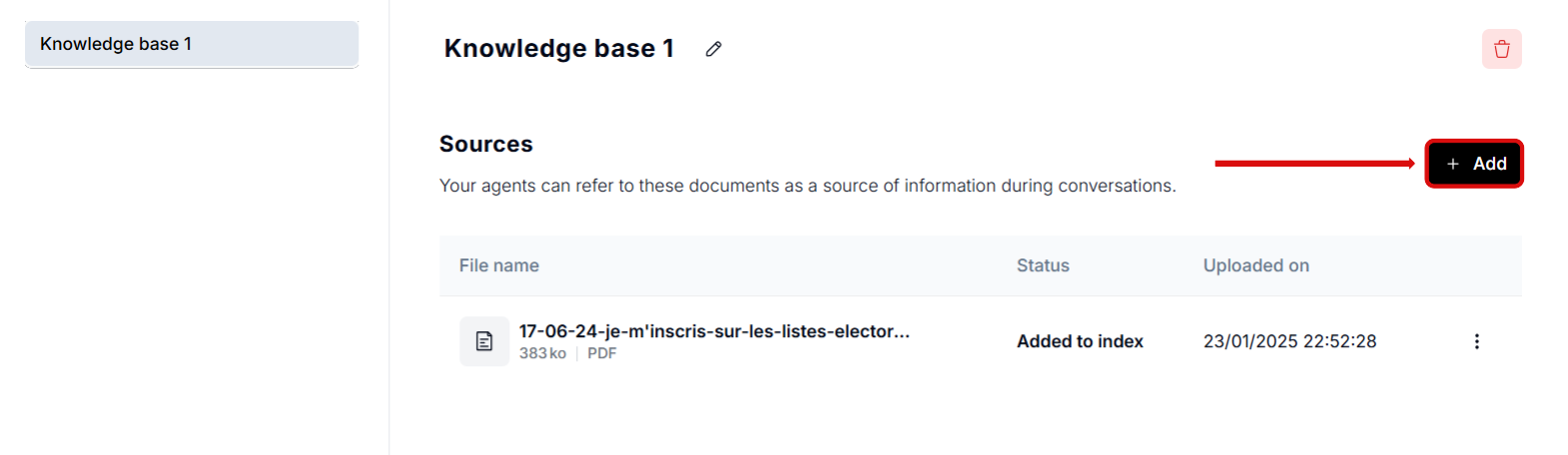
1. Once the new Knowledge Base is created, click on the **"Add"** button (highlighted in red on the screen below) within its section.
***
### 3. Add Documents to the Knowledge Base
1. Once the new Knowledge Base is created, click on the **"Add"** button (highlighted in red on the screen below) within its section.
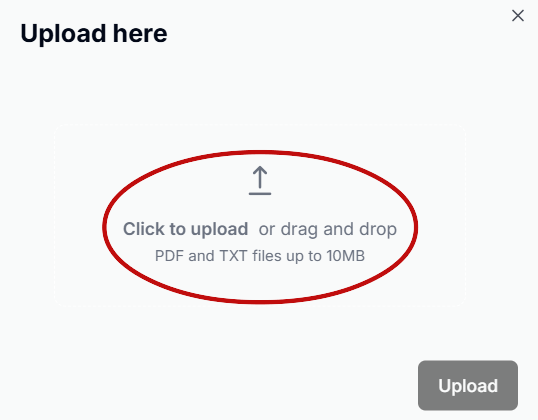
 2. Upload the desired file by clicking on the area highlighted in blue on the screenshot. Accepted formats include PDF and TXT.
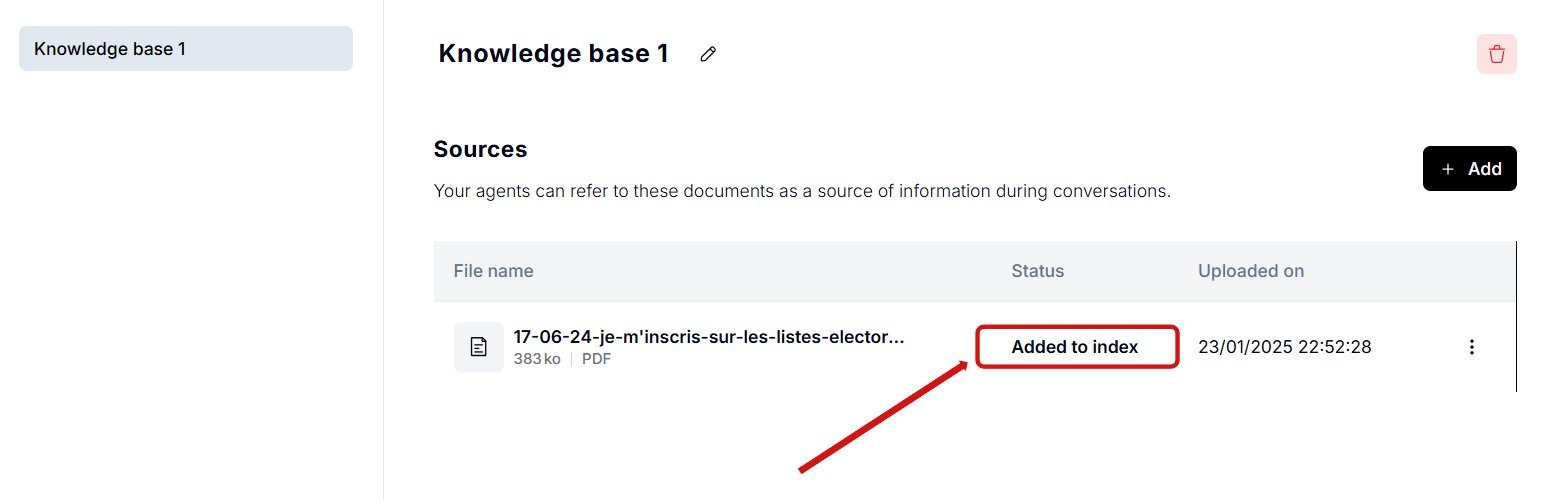
 3. After uploading the documents, wait for the status to change to **"added to index"** (as shown in red on the screenshot). This confirms that the document is successfully added to the Knowledge Base and is ready for use.
 You can upload multiple documents to the same Knowledge Base.
***
### 4. Using a Knowledge Base in Tasks
To enable your agent to consult the Knowledge Base, you need to configure it in the [**Tasks**](/documentation/build/tasks) section.
***
#### Step 1: Go to the Task Settings
Open the task where the agent may need to access the Knowledge Base.
***
#### Step 2: Link the Knowledge Base
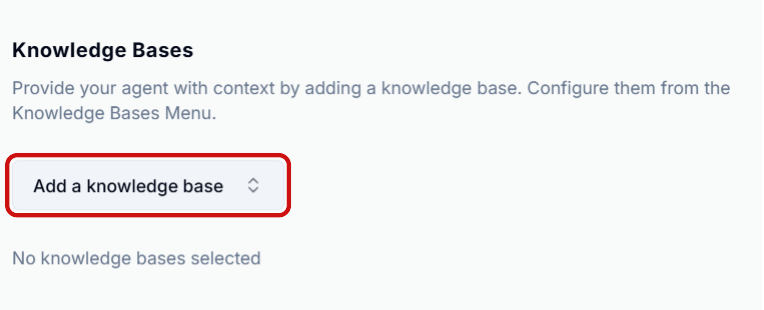
Click on **"Add a knowledge base"** (highlighted in red on the screenshot below) and select the Knowledge Base you wish to associate.
You can upload multiple documents to the same Knowledge Base.
***
### 4. Using a Knowledge Base in Tasks
To enable your agent to consult the Knowledge Base, you need to configure it in the [**Tasks**](/documentation/build/tasks) section.
***
#### Step 1: Go to the Task Settings
Open the task where the agent may need to access the Knowledge Base.
***
#### Step 2: Link the Knowledge Base
Click on **"Add a knowledge base"** (highlighted in red on the screenshot below) and select the Knowledge Base you wish to associate.
 ***
#### Define Usage Conditions in the Prompt
Specify in the prompt when the agent should consult the Knowledge Base.\
For example:
> "If you’re unsure about the procedure for handling a lost card, consult the 'Q\&A' Knowledge Base."
***
#### Define Usage Conditions in the Prompt
Specify in the prompt when the agent should consult the Knowledge Base.\
For example:
> "If you’re unsure about the procedure for handling a lost card, consult the 'Q\&A' Knowledge Base."